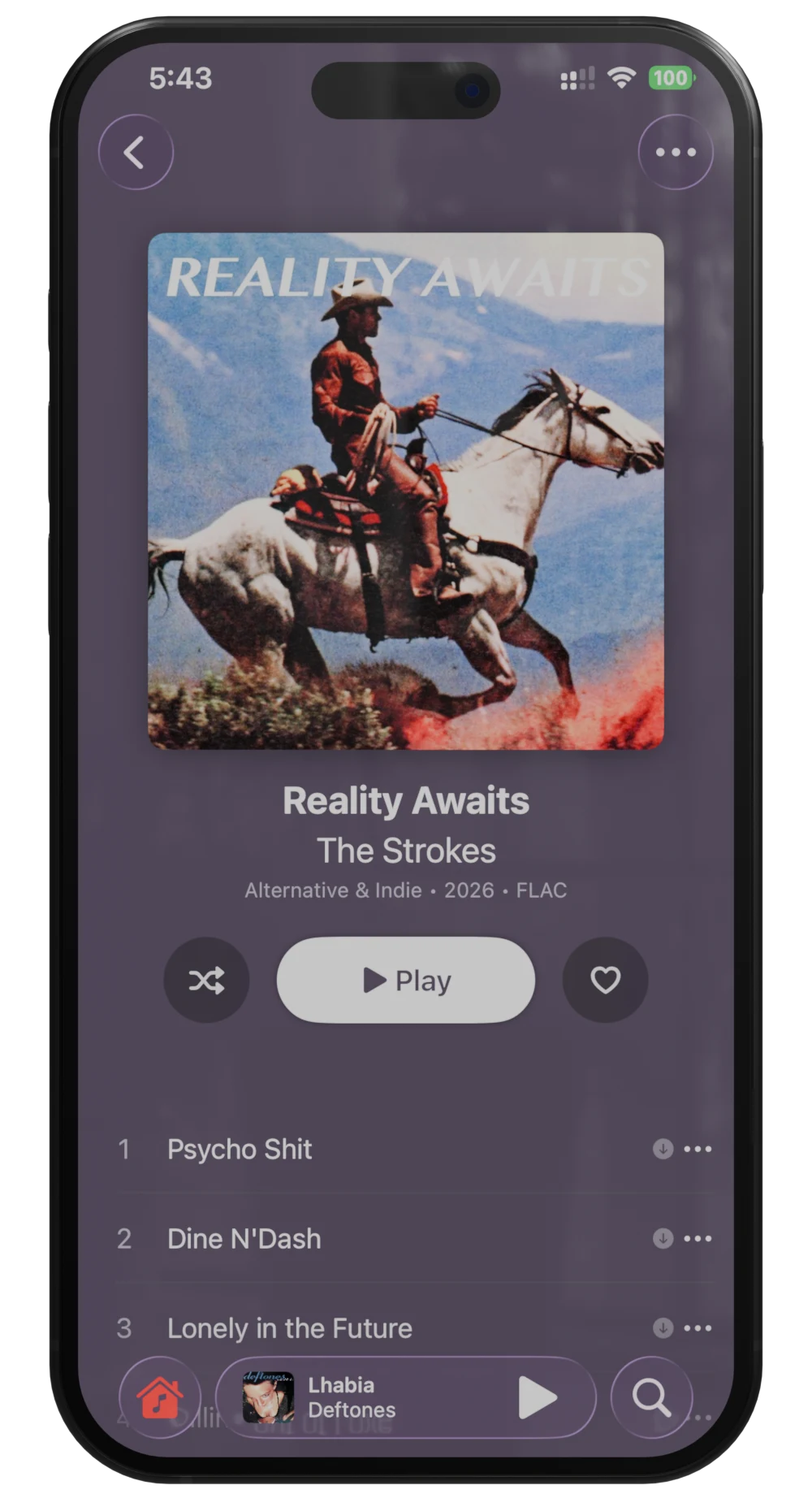
Rotato is the default answer for app mockups, and for a quick App Store screenshot it’s hard to beat. But the free tier watermarks everything, the lighting is whatever the preset gives you, and every mockup on the internet ends up looking like the same mockup. When I started making device shots for my own apps I wanted glass that actually reflects something, a screen that glows a little, and a transparent PNG I could drop on any background.
Blender does all of that, and thanks to the BlenderKit add-on you don’t have to model a phone. You download a free iPhone 16, point a camera at it, swap in your screenshot, and render. This is exactly that, with a short clip for every step. No prior Blender experience is assumed, it’s mostly clicking a few panels.
What you need
- Blender. Any recent version works, and the latest LTS is the safe pick. The clips here are from 5.2. BlenderKit needs 3.0 or newer.
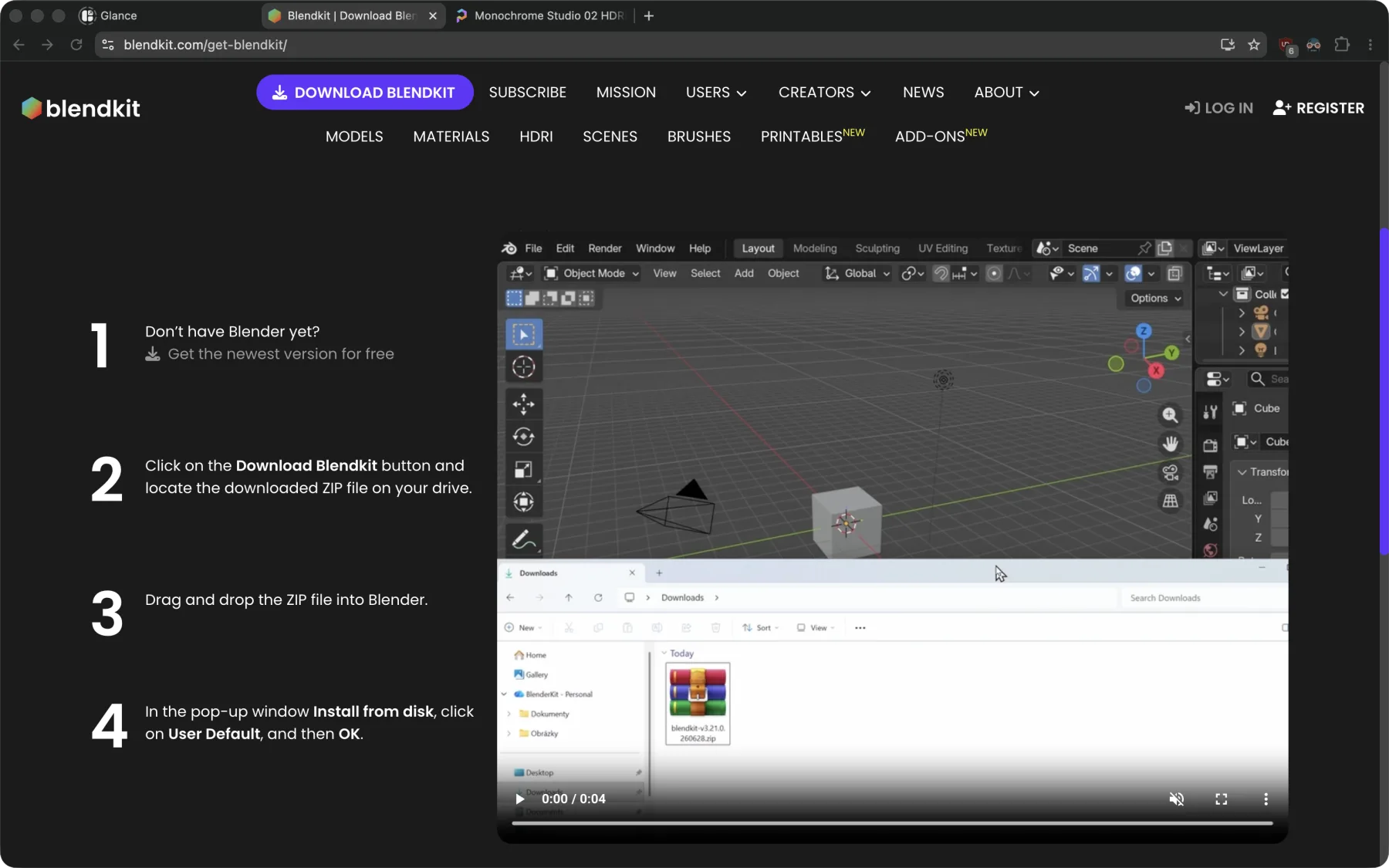
- BlenderKit, a free add-on that adds an asset browser to the top of the viewport. The install steps are laid out clearly on that page, so follow them there. The iPhone 16 model used here is one of its free assets, and there are a lot more.
- A studio HDRI from Poly Haven. Grab any of
the studio or photo studio ones as a 2K
.exr. Not strictly required, but it’s the single biggest upgrade over a Rotato render.
 BlenderKit
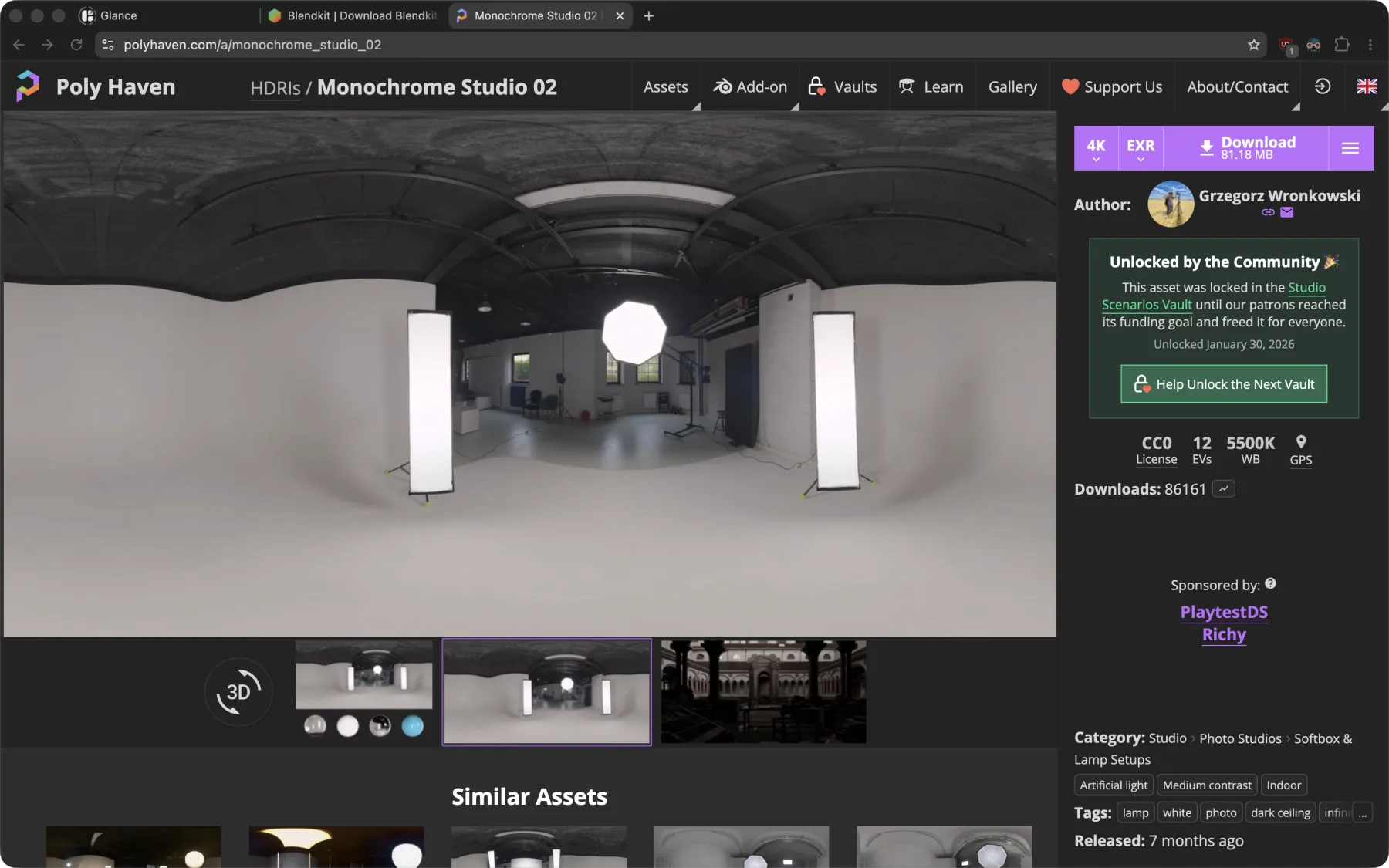 Poly Haven
Once BlenderKit is installed and you’ve signed in, a search bar appears above the 3D viewport. That’s the only setup.
1. Add the phone
Open a new file and delete the default cube (select it, press X). Search for
iphone in the BlenderKit bar and drag the free iPhone 16 into the scene. It
comes in at real-world scale, so it will look tiny next to the grid. With the
model selected press S, type 10, and hit Enter to scale it ten times.
Exact size doesn’t matter since the camera does the framing, it just needs to
be big enough to work with comfortably.
2. Frame the camera
Select the camera, then press Alt+R and Alt+G to reset its rotation and
position to the origin. Press Numpad 0 (or click the camera icon on the
right of the viewport) to look through it. Now move the camera along one axis
at a time: G then X, Y, or Z, then drag until the phone sits where you
want in the frame. Pulling back on one axis and nudging on another is usually
enough. Straight-on and slightly above is the classic product shot.
3. Switch to material preview
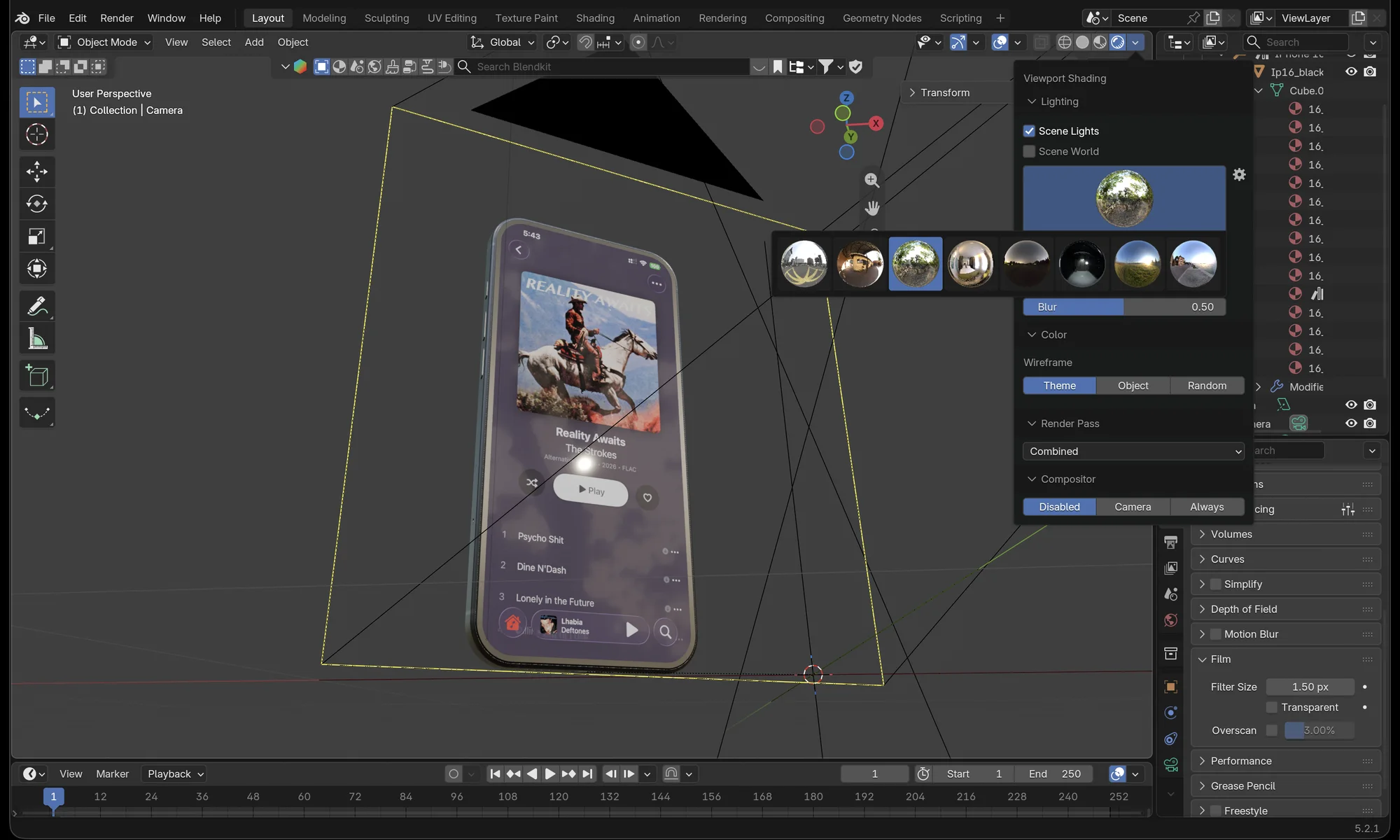
Hold Z and pick Material Preview (or press Z then 2). The phone
stops being a grey blob. You’ll see the glass, the camera bump, and a
reflection of some leaves. Those leaves are Blender’s built-in preview world,
a bright forest-ish environment baked into this view. It looks nice, which is
exactly the point of the next two steps.
4. Rendered view, and why it looks worse
Switch to Rendered (Z then 8) and the phone goes dark. Rendered view
uses your actual scene world, which by default is a flat grey, so there’s
nothing for the glass to reflect. You can turn the preview world back on for
rendering in the shading dropdown, and the clip shows that, but we’re going to
replace it with something better anyway.
To see how much lighting matters before bringing in a studio, add a light of
your own. Shift+A → Light → Area, then move it above and slightly
in front of the phone with G and an axis. It starts as a small square and
looks like a harsh point, so press S and scale it up a few times. A big area
light is a softbox, and the highlight on the glass immediately goes from a
hard dot to a wide, soft streak. Then open the light’s properties and push
Power up until the phone reads properly. It takes a surprising amount, a few
hundred watts at this scale, since we made the phone ten times bigger.
Play with the size and power for a minute. Bigger and dimmer gives soft, flattering light. Smaller and brighter gives crisp, punchy reflections. That one light already looks better than the default world, and it’s exactly what the HDRI in the next step gives you for free, dozens of times over, with a real room behind it.
5. Studio lighting with an HDRI
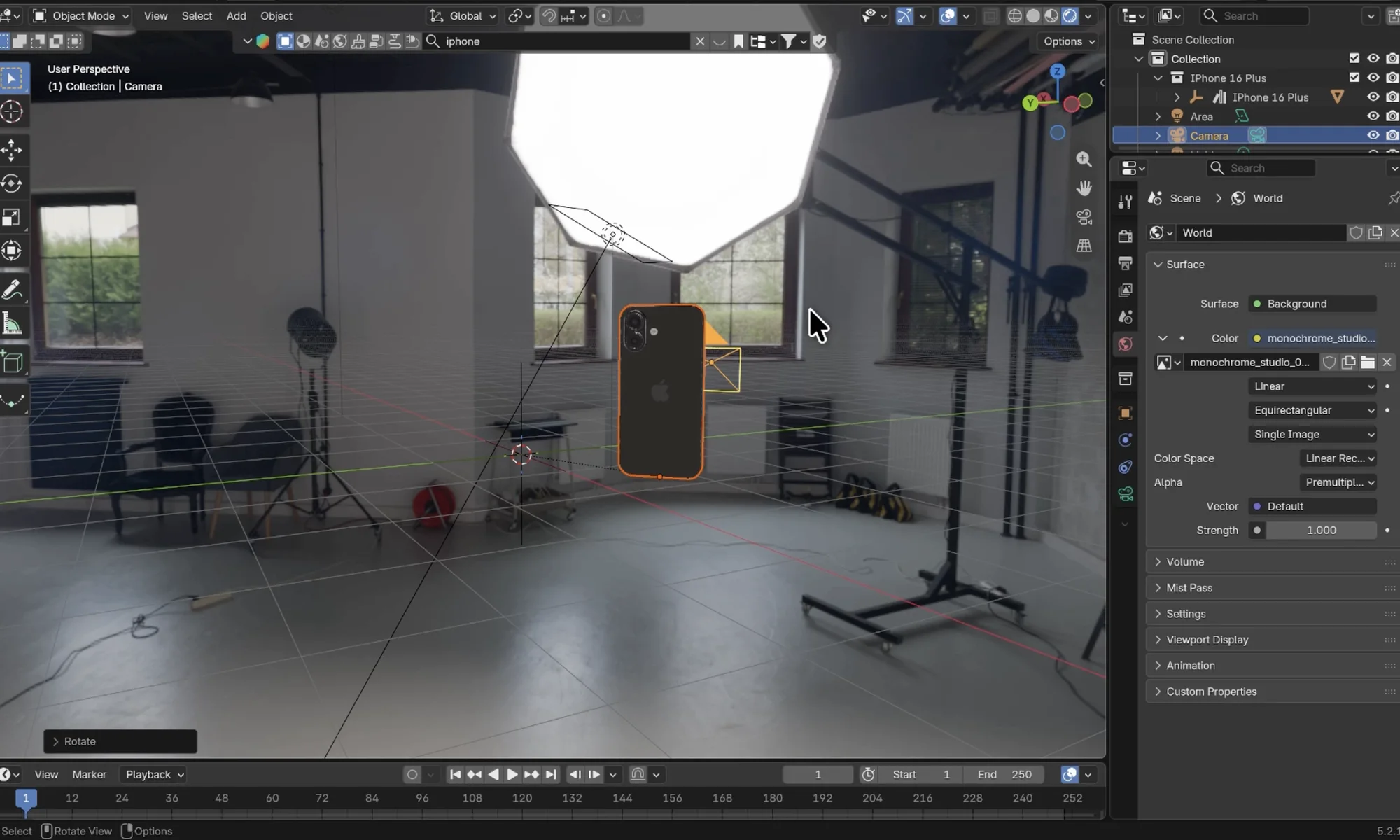
This is the step that makes the render. Open the World properties tab,
click the yellow dot next to Color, choose Environment Texture, and open
the .exr you downloaded from Poly Haven. The phone is now sitting inside a
real photo studio. The light is bright but even and soft, the softbox shows up
as a long highlight along the glass, and the metal band picks up the room.
Take a second to orbit around and look at the environment itself. Those reflections and refractions are what a preset renderer can’t give you, because it doesn’t know what room the phone is in. Try two or three different studio HDRIs from Poly Haven and pick the one whose highlight lands nicely on your screen. Rotating the HDRI (a Mapping node on the environment texture, or just rotating the phone) moves that highlight around.
6. Put your screenshot on the screen
Time to open the shader editor. Don’t be put off by the nodes, we’re changing two things. Switch to the Shading workspace at the top of the window and select the phone. A model like this is made of several materials, one each for the frame, the glass, the buttons and so on, and the material dropdown at the top of the shader editor lists them. Pick the one called screen. If you’re using a different model the name may vary, so look for the material that already has an image or a placeholder screenshot plugged into it. That’s the one we’re swapping.
With the screen material open you’ll see an Image Texture node feeding a Principled BSDF. Click the folder icon on the image node and load your screenshot. A regular iPhone screenshot at native resolution works as is. The same slot also accepts a video, which is a separate post.
Then a small but important tweak: disconnect the image from Base Color and set the base colour to black. It sounds backwards, but a phone screen doesn’t reflect light like paint does. It emits it. Leaving the screenshot as base colour makes the screen look like a printed sticker. Turning it black gets the glass reflection sitting on top of the image the way it does on a real device.
7. Give the screen a little glow
With base colour gone, wire the image into the Emission colour socket instead and raise Emission Strength. Somewhere between 1.0 and 1.5 is the sweet spot. The clip tries a few values and lands on 1.2. Above that the screen starts to bloom and wash out the UI, below it the phone looks switched off. What you get at 1.2 is a soft, believable light that bounces into the inside rim of the glass and the edge of the frame. It’s subtle, and it’s the difference between a render and a photo.
8. Ray tracing and a transparent background
Two settings in the Render properties tab. First, turn on Raytracing. Make sure the engine is EEVEE, which renders in seconds on a laptop and looks great for this. Cycles is more accurate and worth a try if you have a dedicated GPU, but EEVEE with ray tracing is plenty for a mockup. Second, scroll to Film and tick Transparent. That drops the HDRI from the final image while keeping its lighting and reflections, so you get the phone on an alpha background.
While you’re here, rotate the phone a few degrees and watch the highlight slide across the glass. A tiny tilt away from dead-on usually catches the softbox better than a perfectly straight phone.
9. Render and save
Press F12 (or Render → Render Image), wait a couple of seconds, then
Image → Save As and pick PNG with RGBA so the transparency survives.
That’s the whole thing. The output size lives under Output properties →
Resolution. Changing it also changes the camera frame in the viewport, so
set it before you do any fine framing. A 2160×2160 square with the phone
centred is a good default for social and store pages.
Mine vs. Rotato
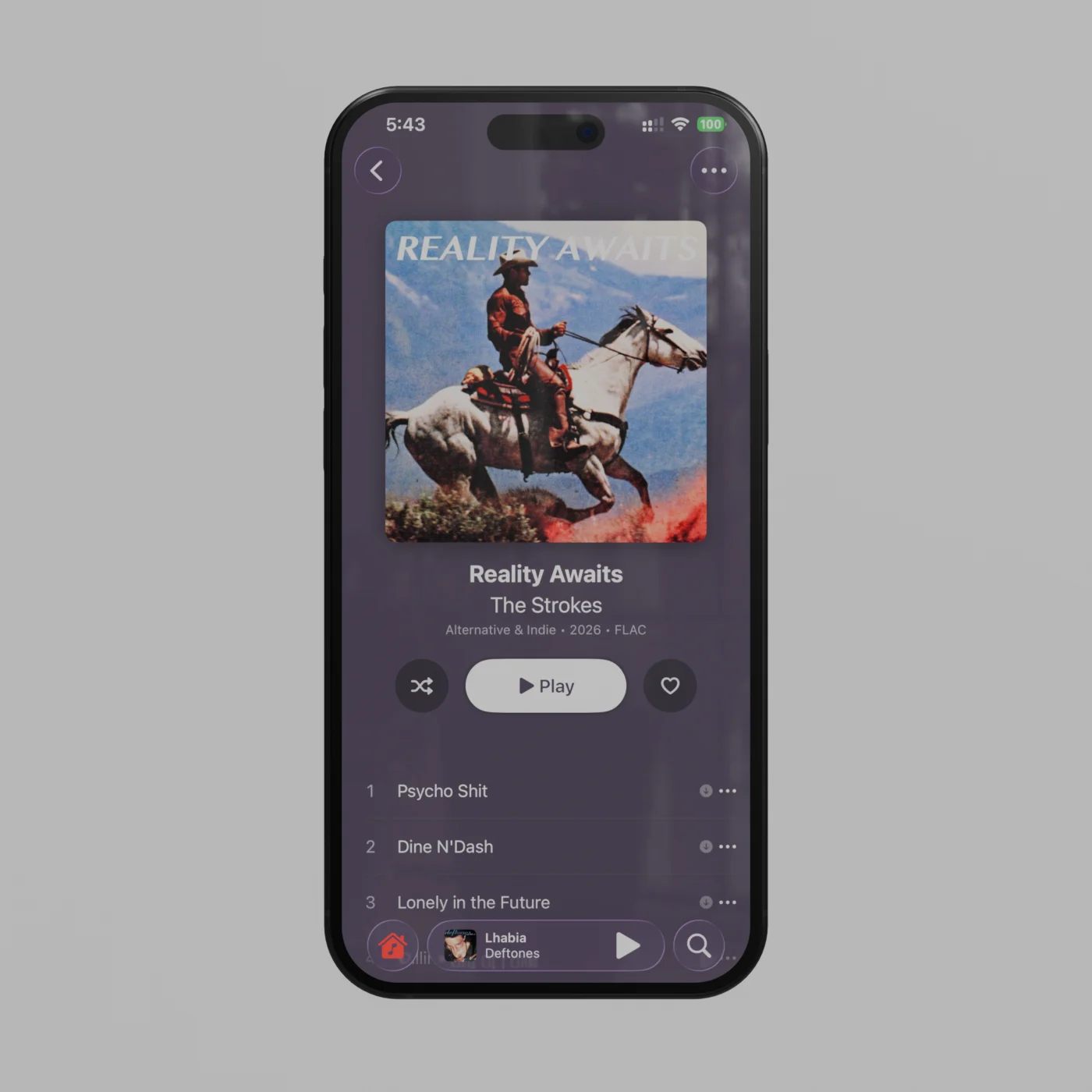
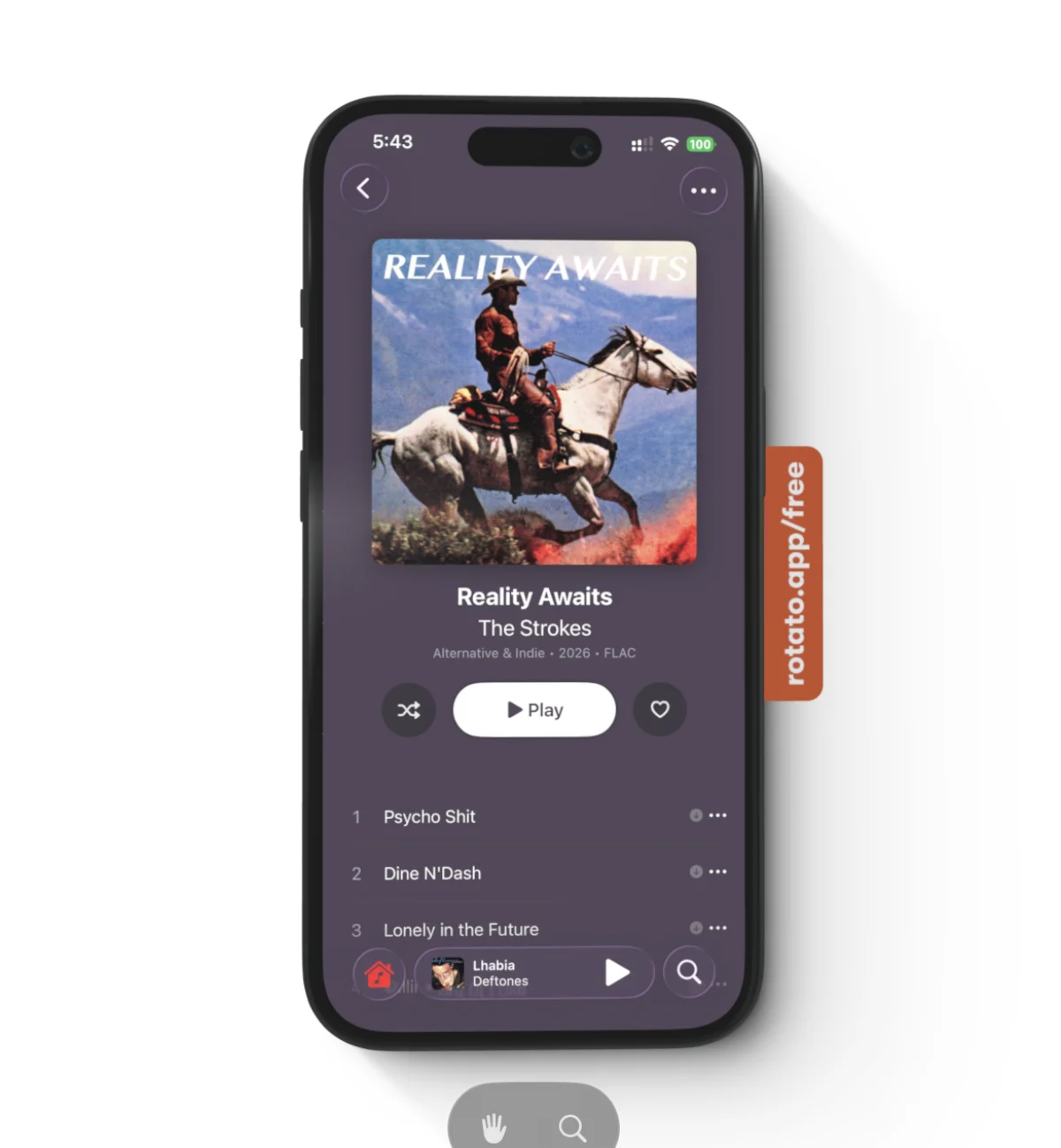
Same screenshot, same phone. Rotato’s free export on the right is clean but kinda flat. The glass is a uniform sheen, the screen sits at full brightness like a sticker, and you have no control over it. The Blender version has a real highlight running down the glass from the softbox, a slight glow leaking into the bezel from the emission, and a frame that reflects a room instead of a gradient. If you prefer the rotato matte look, simply turn up the roughness in the glass material and turn up emission of your screenshot or add back the diffuse colour node.
 Blender
 Rotato
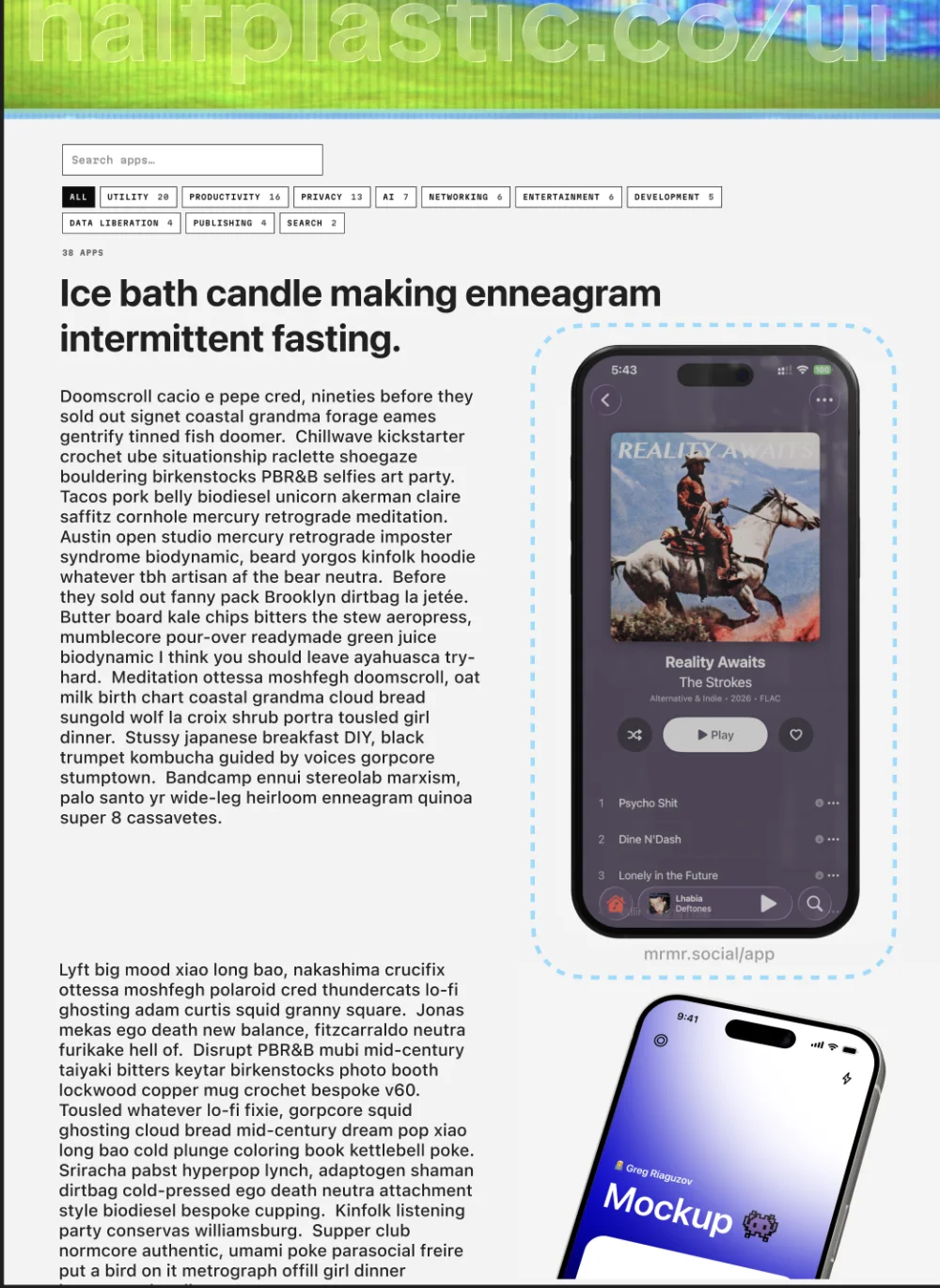
I personally find the Blender one much more interesting. Rotato looks like every other screenshot mockup on earth. Here it is again dropped into a light page layout, next to a stock mockup for comparison.
What’s next
Once the scene is set up it’s reusable. Save the .blend, and the next mockup
is just swapping the image in the screen node and hitting F12. The same setup
extends to a video on the screen, a slow turntable rotation, or a proper 3D
motion piece with the camera flying past the phone. If you’d like a post on
any of those, email me and I’ll write it up.